
Understanding Clients and Requests
Last updated 10 April 2025
Learn how to manage your coaching pipeline, from new client requests to active client oversight.
Once you’ve invited clients to join bolder.fit, the Clients section becomes your central hub for managing those relationships. Here's how it works:
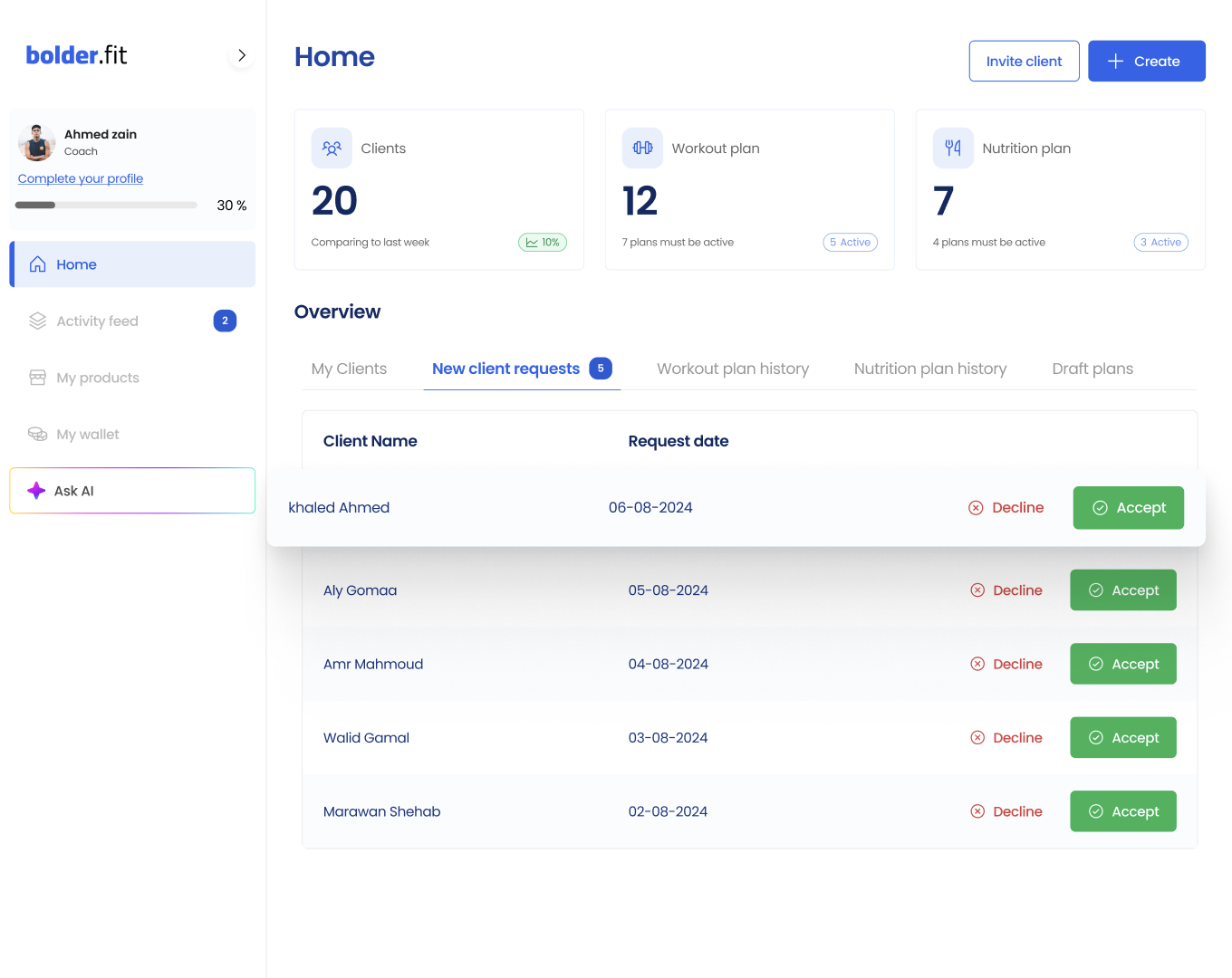
👥 Client Requests Tab
This is where new clients appear after registering through your invite link.
Each request includes:
- Client Name
- Join Date
- Status (Pending / Accepted)
You can:
- Accept requests if you're within your client limit.
- Decline requests you no longer want to process.
- Search and filter using the built-in toolbar.
💡
Quick Tip:
If you’ve reached your plan’s client limit, deactivate an existing client to make room before accepting a new one.
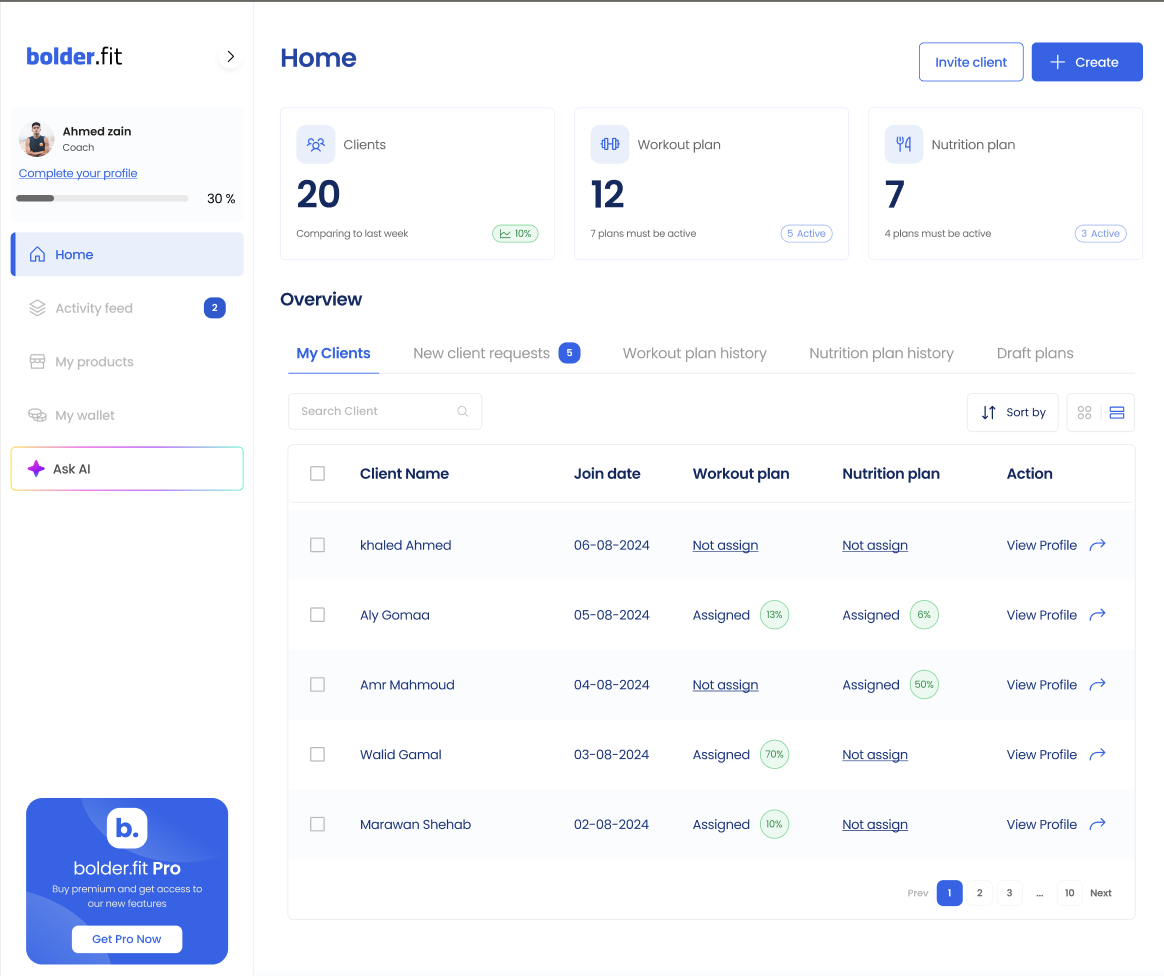
📋 Clients Tab
After accepting a request, the client will appear in your Clients tab, where you can:
- View key info (name, activity, assigned plans).
- Click on a client to open their full profile.
- See plan assignment status (e.g., “Not Assigned”).
- Assign workout or nutrition plans right from the table.
- Use filters to find clients by plan status, name, or activity.
💡
Quick Tip:
Clicking “Not Assigned” next to a client’s name takes you straight to plan assignment.
📊 Stay on Top of Your Queue
- Use sorting and filtering to prioritize who needs attention.
- Keep an eye on unassigned clients to get them started faster.
- Regularly check for new requests so no one slips through.